 Earnings API
Google Sheets add-on
EarningsAPI for Google Sheets
A simple way to bring earnings data into a spreadsheet. Pick the data you want, create a table, and refresh it later.
Built for spreadsheet users. No code, no Apps Script setup, no copying raw data by hand.
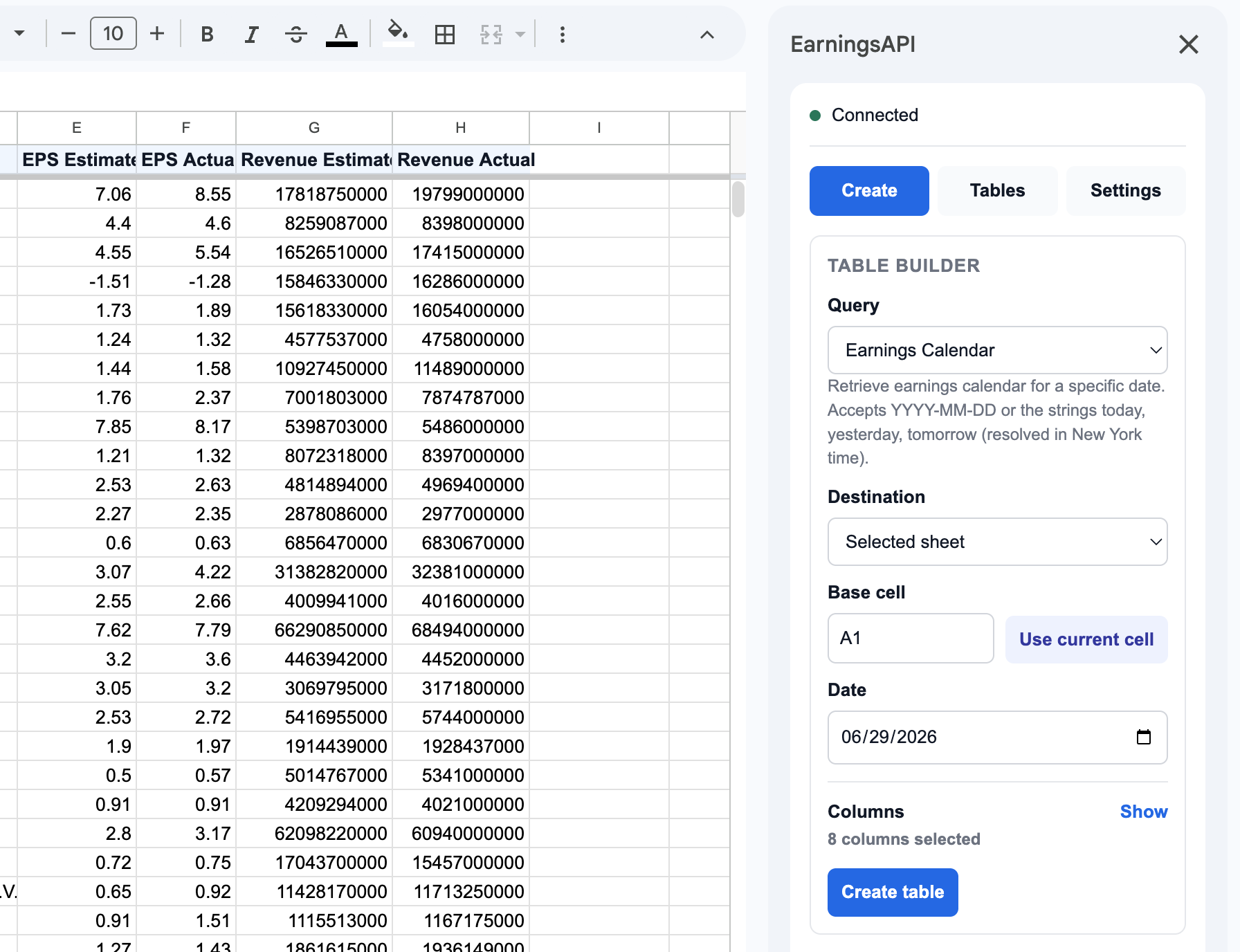
Setup
Set it up once.
The first time, you only need to connect the add-on to your EarningsAPI account.
- 1
Open Google Sheets
Open the spreadsheet where you want the earnings data to appear.
- 2
Open the EarningsAPI sidebar
From the Google Sheets menu, choose Extensions, then EarningsAPI, then Open sidebar.
- 3
Save your API key
In Settings, paste the API key from your EarningsAPI dashboard. After that, Create and Tables are ready to use.
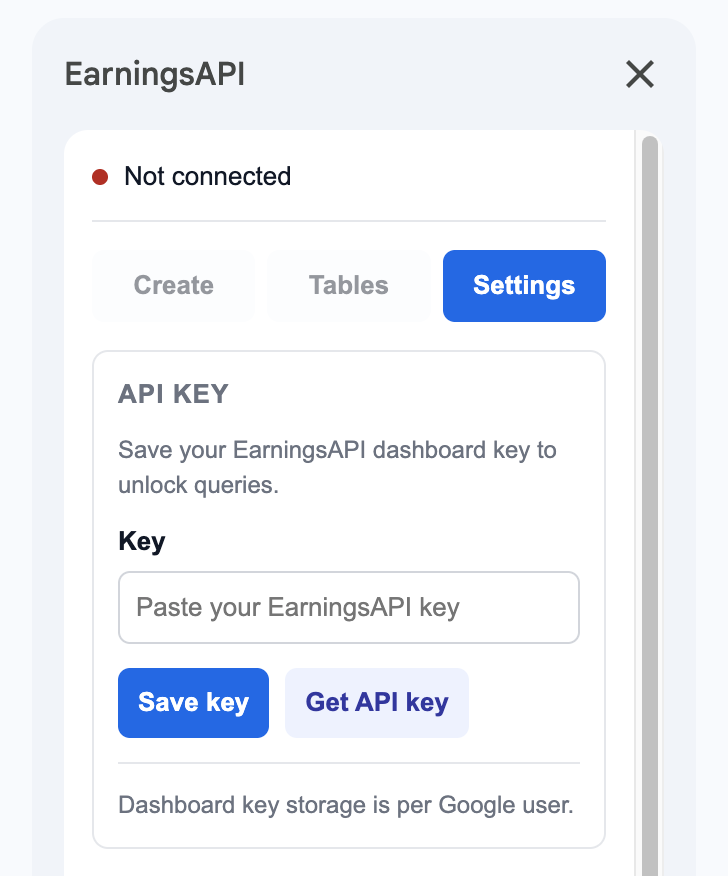
First table
Create your first table.
Choose what you want, choose where it should go, then let the add-on write the table.
- 1
Choose the data
Pick a data type, such as Earnings Calendar, Company Earnings, Earnings Movers, or Profile.
- 2
Choose where the table starts
Use the current sheet or a new sheet, then pick a starting cell like A1.
- 3
Click Create table
The add-on writes a normal spreadsheet table. If you want fewer columns, open Columns and uncheck what you do not need.
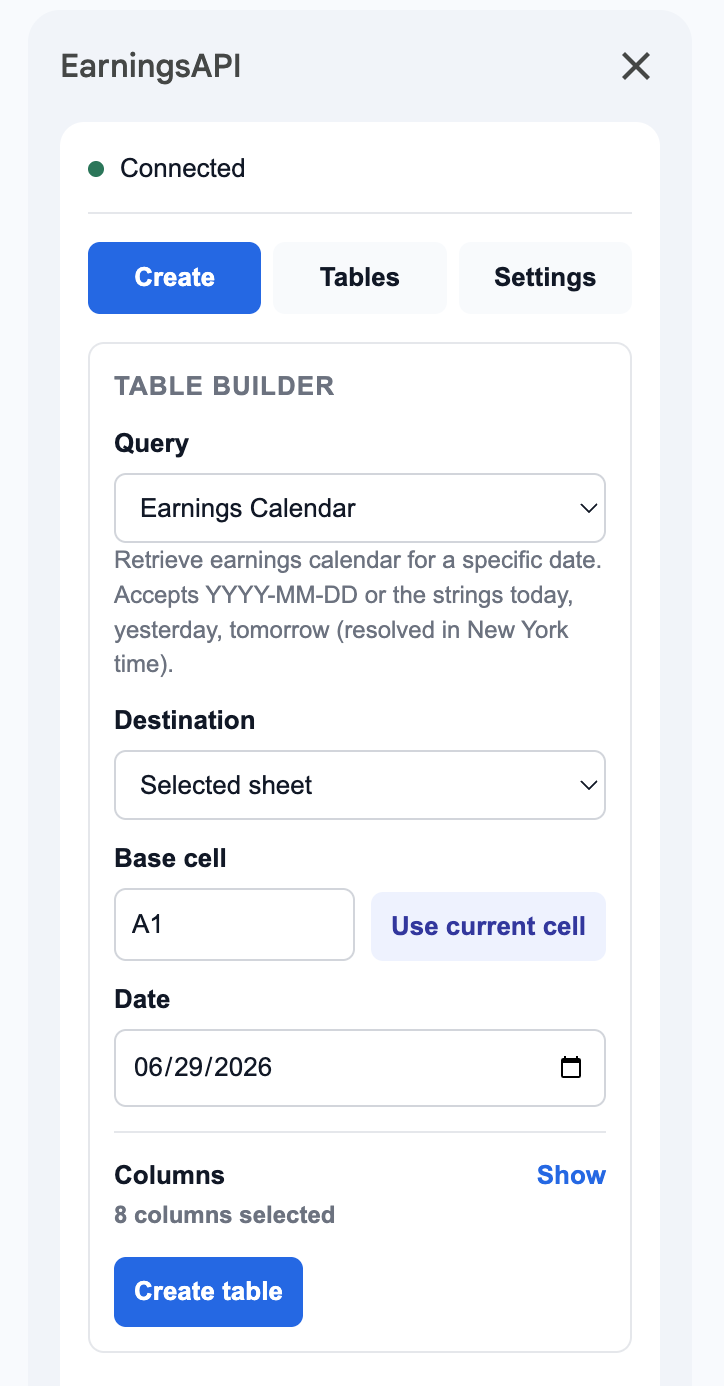
Refresh
Update it later.
After a table is created, you can update it by hand or set a simple schedule.
Refresh by hand
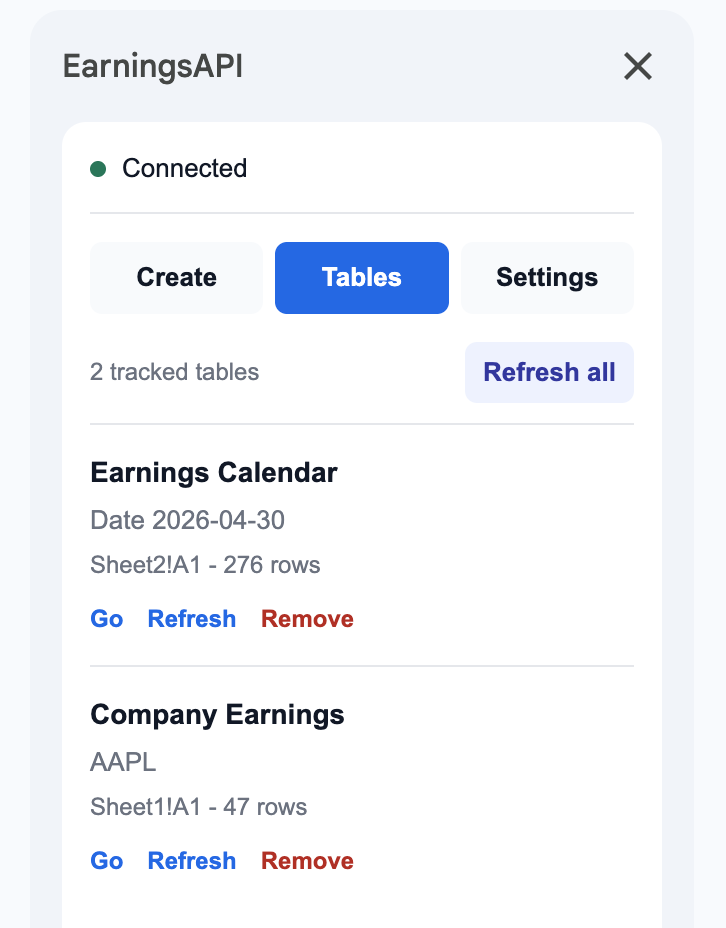
Use the Tables tab when you want fresh data right now. Refresh one table, or use Refresh all for every tracked table.
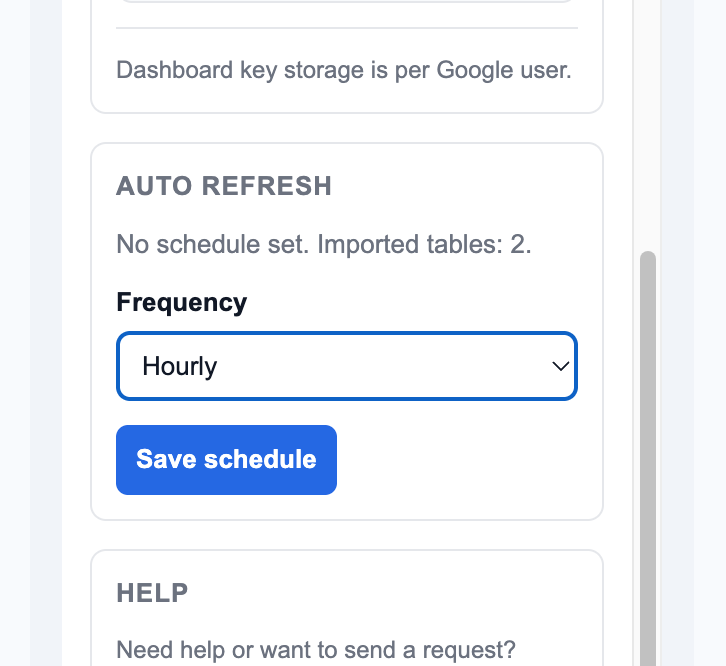
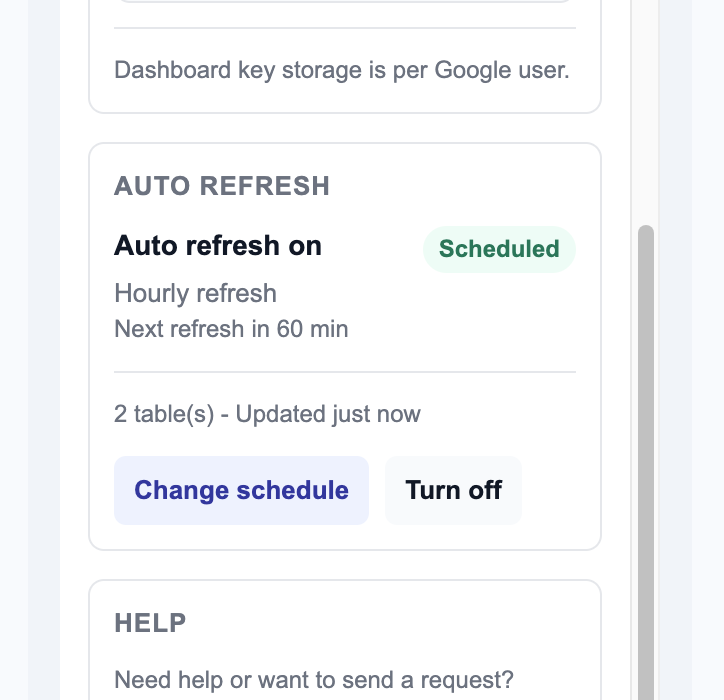
Refresh on a schedule
In Settings, choose hourly or daily refresh. The add-on keeps imported tables updated automatically, and turning it off will not erase your sheet data.
FAQ
Common questions
Short answers for the things most people ask first.
Do I need to know code?
No. The add-on is built for spreadsheet users. You choose options in the sidebar and the table is written into Google Sheets.
Where do I get my API key?
Sign in to your EarningsAPI dashboard, copy your active API key, then paste it into the add-on Settings tab.
Can I choose columns?
Yes. When you create a table, you can keep the default columns or select only the ones you want.
Can the table update later?
Yes. You can refresh tables by hand or set a daily or hourly refresh schedule.
Can I ask for a new field or workflow?
Yes. Send a help request and tell us what you want to build in your sheet.
Want help setting up your sheet?
Tell us what you want the spreadsheet to do. We can help with setup, missing columns, new data requests, or a button you wish the add-on had.
Ask for help